iT邦幫忙

2026 iThome 鐵人賽

DAY 2
0

今天我們要打造自動化助理的核心功能——讓 AI 能直接「讀懂」學生上課的 PDF 講義、簡報或論文,並將其轉化為結構化的文字資訊。
Day 04 的開發目標:

  1. 技術選型:使用 Python 的 pypdf 套件提取 PDF 文字(輕量、零成本、純 Python 實作)。
    2.整合 Gemini API:將擷取出的 PDF 文字餵給 gemini-3.6-flash 進行自動化重點摘要與結構化整理。
    3.輸出格式化:生成包含「核心概念」、「重點摘要」與「課後測驗題」的學生專屬學習筆記

一、 安裝 PDF 解析套件
在PowerShell虛擬環境中,安裝輕量級PDF處理套件pypdf:
python -m pip install pypdf
二、 準備測試 PDF 檔案
請在你的專案根目錄(與 day03_test.py 同一層)放一份測試用的 PDF 檔案,檔名命名為 sample.pdf。
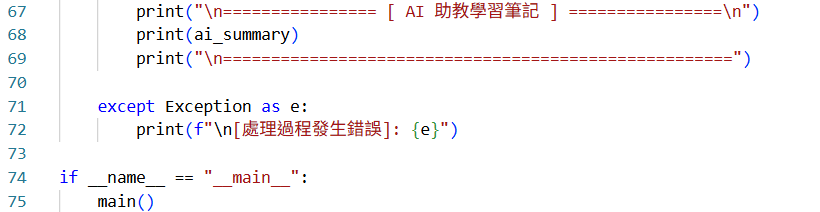
三、 撰寫 day04_pdf_parser.py
建立一個新檔案 day04_pdf_parser.py
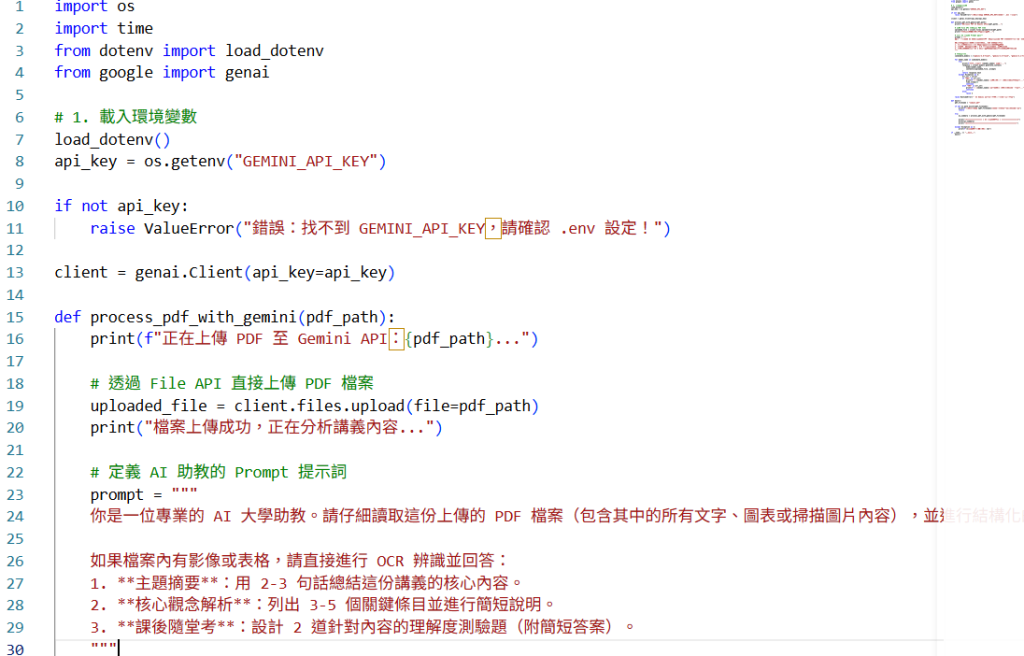
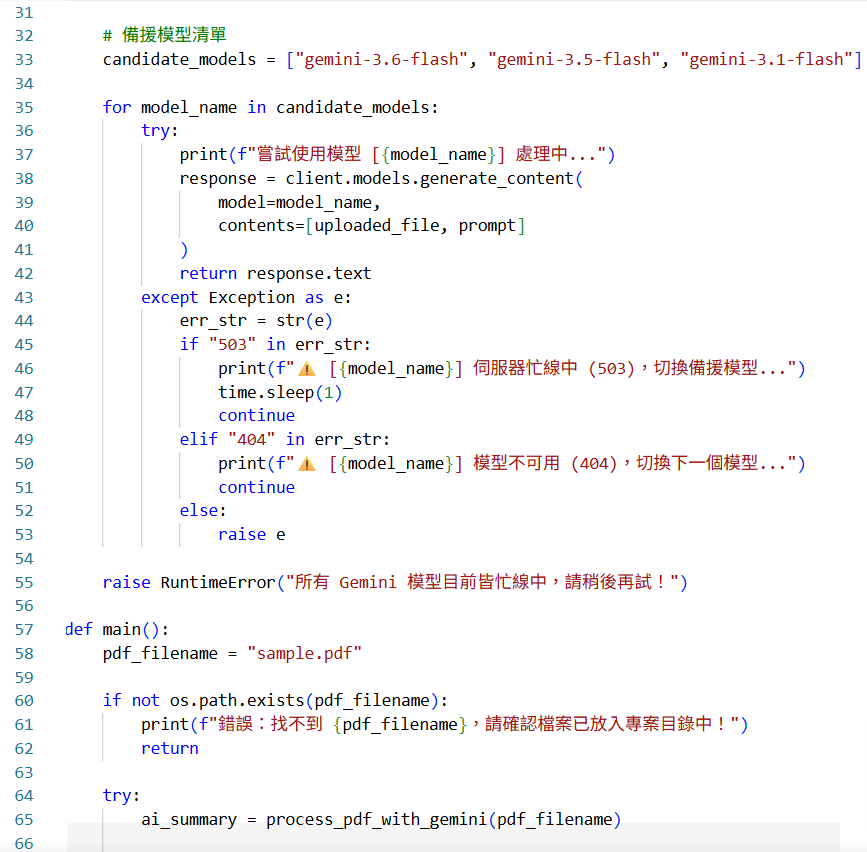
https://ithelp.ithome.com.tw/upload/images/20260918/20184356cmGVfuBbfV.pnghttps://ithelp.ithome.com.tw/upload/images/20260918/20184356kVsO4HSPSY.pnghttps://ithelp.ithome.com.tw/upload/images/20260918/20184356eN4dXvlnui.png
四、 執行與測試
在 PowerShell 執行以下指令:
python day04_pdf_parser.py
最後,終端機就會自動印出解析後的講義重點與隨堂測驗題!
成果:
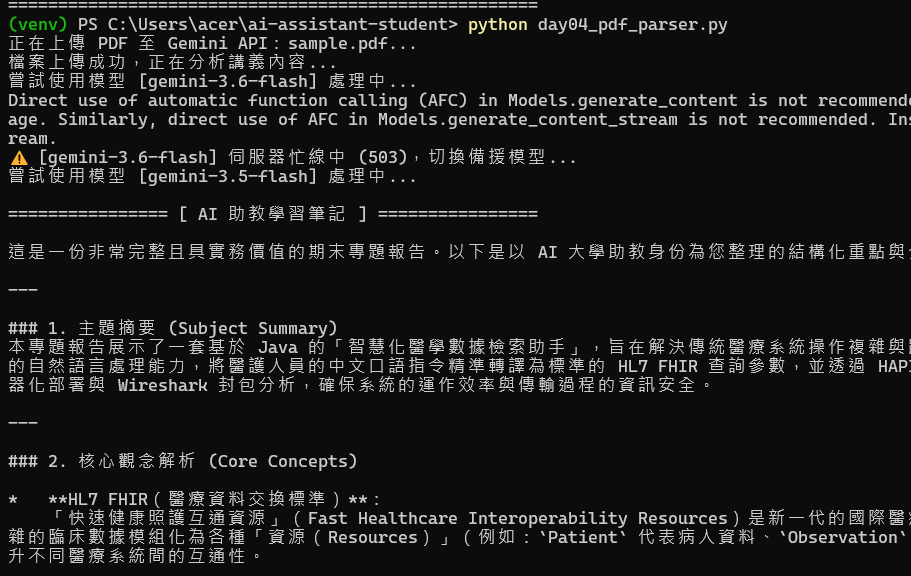
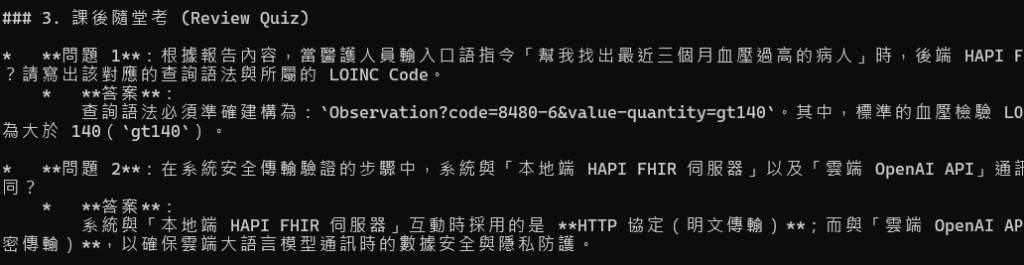
https://ithelp.ithome.com.tw/upload/images/20260918/201843562HPB2lNFio.png
https://ithelp.ithome.com.tw/upload/images/20260918/20184356J6mH9EkOFW.png


上一篇
環境建置與資安隔離:成功發送你的第一個 Gemini API 請求
系列文
實戰打造個人專屬 AI 自動化工作流:從零建立高效生產力系統4
圖片
  熱門推薦
圖片
{{ item.channelVendor }} | {{ item.webinarstarted }} |
{{ formatDate(item.duration) }}
直播中

尚未有邦友留言

立即登入留言